A few weeks ago, there was a discussion board post on formatting sub-objects. I’d tried to accomplish this a few times in the past, and always given up, but I was curious if either things had gotten better with 15.3 or I’d gotten better at scripting. Turns out the answer is no and maybe. A little trial and error and I’ve come up with a reasonable method of accomplishing my goals. I don’t believe the solution I’ve got here is great (maybe not even good), but it’s an interesting topic and perhaps someone will refine it into something more useful. As a learning exercise, it certainly taught me a lot.
So let’s talk about some of the things I’ve found and some of the things I tried before settling on the solution below.
First, there are no methods for formatting subjects directly (so scratch anything easy off the list).
There is a property on the symbol that controls the formatting of sub-objects (good) but unfortunately, it’s basically a big text string that you have to parse and manipulate. My first attempt involved parsing that string and manipulating the formatting for particular objects. That became a bit of a code nightmare and the results during early testing were a bit “erratic” if I didn’t insert my changes into the string perfectly. Here’s a case where my vbscript skills might have let us down.
So, if there’s no easy methods for manipulating sub-object formatting, and modifying the format is difficult, what’s left? Well, what I settled on was creating extended attributes for the formatting and then creating a routine to build a new sub-object format string from the ground up based on those properties. My thought was that by ignoring any existing sub-object formatting, I lessen the chance that my string manipulation creates a garbage format command. I can write a variety of different routines to set the formatting properties on objects in the model for different purposes … so one routine to make all items modified since the last checkin bold, another to highlight columns that don’t have a definition., etc. What could possibly go wrong?
So, let’s start building…
Step 1: Create Custom Attributes
So, it turns out he sub-objects that can be displayed include columns, indexes, keys, etc. Since I’d rather not have to create the same sets of attributes on them all, we’re going to put them on the extensible object metaclass. This is a great shortcut when you want to do the same operation on a lot of classes. So, in case you haven’t done this before, let’s walk through it.
I’m assuming you know how to add an extended attribute, if you don’t you can get the official documentation here or follow Joel’s quick example here. The only thing you’ll need to do differently is select the PdCommon tab and change the filter to “Show Abstract Modeling Metaclasses”.
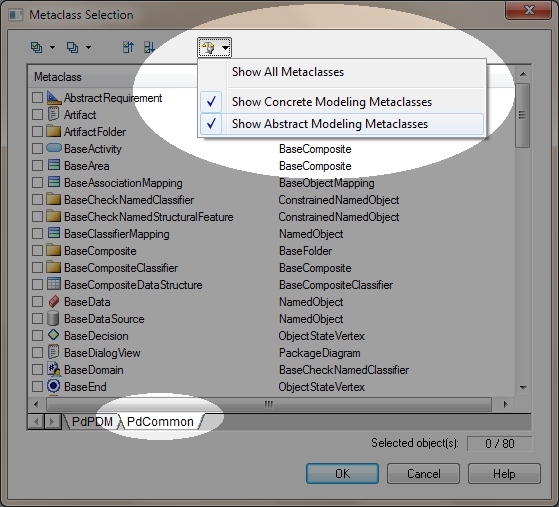
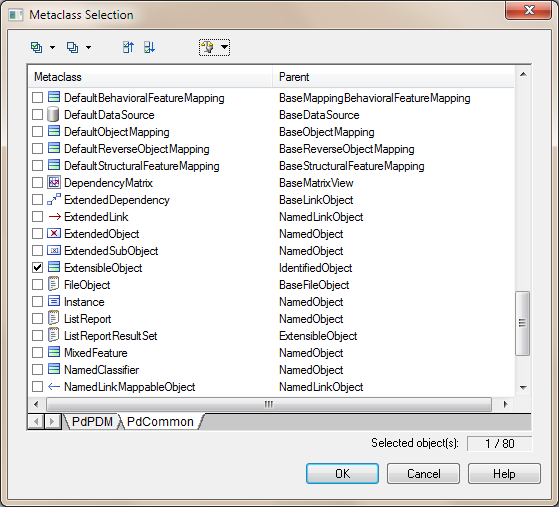
Once you’ve done that, ExtensibleObject should appear in the metaclass list. Check the box and hit ‘Okay’.
Allright, now let’s add attributes. When you add an attribute, you’ll notice that Sybase has conveniently provided predefined types for Font, Font Size, and Font Name. They all provide the font dialog box as a handy mechanism for selecting the attributes. Less convenient , even though all of them show you a dialog that allows you to select the font, size, style and color, none of them return all of those values to the extended attribute. Font will actually give you name, size and style. Font Name returns only the name, Font Size returns the size (duh) as a number. None of them return the color, even though it’s an option on all three dialog boxes. Downright annoying, the syntax for storing the font for the predefined attributes doesn’t match the formatting used to set the subobject format.
So, if you create custom attributes for Font and Color – the smallest number of attributes necessary, and just concatenate them with a comma in the middle (customFont & “,” & customFontColor) you’d get something like this:
Arial Rounded MT Bold,Bold,8,255 0 0
The subobject string for specifying the same value is
Arial Rounded MT Bold,8,B,255,0,0
Notice a few dfferences.
- The order of the values is different. Font size and style are switched
- The format of the style property is different. the Font property stores “Bold” while the subobject format is “B”
- The color property is space separated in the color attribute with spaces and with commas in the subobject format.
Probably a case of two programmers doing their tasks without recognizing there was reason to make them match (or even anything to match to). Annoying but not the end of the world. However, if anyone from Sybase reads this, a font property that returns the color value and a subobject format string that matches would be greatly appreciated.
More annoying is that if I use just font and color, I’ve gotta break up the font property (did I mention I dislike string parsing?) and reassemble it in a different order (and with some substitutions to turn Bold into B).
So, here’s what I came up with. 2 extended attributes:
- customFont which is a font data type and gives me the font name, style and size (specified incorrectly for my purposes)
- customFontColor which is a color data type and gives me the custom color
- customFontFormat which I’ve defined as a calculated attribute. The calculation combines the other two attributes and formats them properly for the subobject format string. A little divide and conquer that makes the rest of my scripts a little shorter. You can do this as a subroutine as well, I prefer calculated attributes which makes them “visible” outside of a vbscript and makes debugging a breeze.
Step 2: Code the Calculated Attribute
Function %Get%(obj)
 ' Implement your getter method on <obj> here
 ' and return the value

 dim customFont, fontName, fontStyle, fontSize, fontColor, strPos

 customFont = obj.getExtendedAttributeText("SubObjDemo.CustomFont")

 strPos = instr(customFont,",")

 'get the name
 fontName = left(customFont,strPos-1)

 'get the style and convert to the allowable values
 customFont = mid(customFont,strPos+1)

 strPos = instr(customFont,",")
 fontStyle = left(left(customFont, strPos-1),1)
 if fontStyle = "" then
 fontStyle = "N"
 end if

 customFont = mid(customFont,strPos+1)

 'now the font size
 fontSize = customFont

 if fontSize = "" then
 fontSize = 10
 end if

 fontColor = obj.getExtendedAttributeText("SubObjDemo.CustomFontColor")

 if fontColor = "" then
 fontColor = "255,255,255"
 else
 fontColor = replace(fontColor," ",",")
 end if

 %Get% = fontName & "," & fontStyle & "," & fontSize & "," & fontColor

End Function
Step 3: Some Assembly Required
So, now we have all the individual pieces, we just need to assemble them. I’ve gotten as far as columns and keys. Obviously there are other properties available, but we’ll leave that as an exercise for the reader. If anyone would care to finish this, I’d be more than happy to publish the finished product.
So, first create a custom method. Here’s the logic. For each table symbol in the active diagram find the object it represents. Then loop through the columns and keys collection and get the customFontFormat property. Use these to build a new format string for the symbol.
Here’s my code:
Sub %Method%(obj)
   ' Implement your method on <obj> here

   dim sym
   dim symObj ' object the symbol represents
   dim subObj ' the sub-objects in the objects (columns and keys in this example)
   dim formatStr ' the new sub-object format string we'll assemble
   dim workStr ' a working string that we'll build to replace the format string

   ' now, start by looping through the symbols on the active diagram

   for each sym in activeDiagram.symbols

     if sym.ClassName = "Table Symbol" then'
         'get the object (in this case table)
         set symObj = sym.Object

         'We're going to build the subobjects string using the formatting values stored in the objects.
         'first the table level entities

         'columns
         for each subObj in symObj.Columns
            if subObj.GetExtendedAttribute("SubObjDemo.CustomFontFormat") <> "" then
               if workStr <> "" then
                  workStr = workStr & vbLf
               end if
               workStr = workStr & subObj.ObjectId & " " & subObj.GetExtendedAttribute("SubObjDemo.CustomFontFormat")
            end if
         next

         if workStr <> "" then
            if formatStr <> "" then
               formatStr = formatStr & vbLf
            end if
            formatStr = formatStr & "Column 0" & vbLf & workStr
         end if

         'now keys
         for each subObj in symObj.Keys
            if subObj.GetExtendedAttribute("SubObjDemo.CustomFontFormat") <> "" then
               if workStr <> "" then
                  workStr = workStr & vbLf
               end if
               workStr = workStr & subObj.ObjectId & " " & subObj.GetExtendedAttribute("SubObjDemo.CustomFontFormat")
            end if
         next

         if workStr <> "" then
            if formatStr <> "" then
               formatStr = formatStr & vbLf
            end if

            formatStr = formatStr & "Key 0" & vbLf & workStr
         end if

         sym.subObjects = formatStr

     end if

   Next

   activeDiagram.RedrawAllViews

End Sub
Create a menu item on the menu item to call or new method and this part is done.
Step 4: A Method to Set Formats
So now we can format subobjects for a table if there’s a custom format specified – and you can set them manually by editing the custom properties we defined. Obviously that’s now something we want to do. What’s left? A method or methods to set the sub-object format properties on objects based upon some condition. While I think columns changed or added since the last checkin is the obvious candidate for this, I don’t know if you have a repository and that’s a little hard to test. So I’m going create my script to identify columns which don’t have a comment. The thing I like about this particular approach is I can re-use the apply formatting method and create many different methods to set the formatting properties on sub-objects. So here’s my method:
Sub %Method%(obj)
   ' Implement your method on <obj> here

   Dim mySel
   Dim myObj

   Set mySel = ActiveModel.CreateSelection

   mySel.AddObjects ActiveModel, cls_column, false, true

   For each myObj in mySel.Objects
      With myObj

         if myObj.comment = "" then
            myObj.setExtendedAttribute "CustomFont","Arial,Bold,9"
            myObj.setExtendedAttribute "CustomFontColor","255 0 0"
         else
            myObj.setExtendedAttribute "CustomFont","Arial,Normal,9"
            myObj.setExtendedAttribute "CustomFontColor","0 0 0"
         end if

      end with

   Next

   obj.ExecuteCustomMethod "SubObjDemo.ApplyFormat"End Sub
Now we create a menu item again, and we’re good to go. If you’d like the complete code and a sample model, just download subObjectFormatting.pdm below.
Best of luck.
Download:
SubObjectFormatting.pdm from box.net
 Power Designing
Good stuff Rich! I’m anxious to give it a try.
Posted by Joel Anderson | April 22, 2011, 7:24 amHi Rich!
I have an easier version for subobject formatting.
Please see the code below.
It’s highlighting the new columns/attributes.
Bye,
Gabor
‘******************************************************************************
‘* File: Color_new_columns.vbs
‘* Purpose:
‘*
‘* Title: Color new columns
‘* Category: Automation
‘* Comments:
‘*
‘* Version: 1.0
‘* Company: Meta4Consulting Europe
‘* Author: Gabor Gollnhofer
‘*
‘* History:
‘* 2008.12.11 GG Initial Version
‘*
‘******************************************************************************
Option Explicit
dim tbl
dim sym
dim col
‘for each tbl in activemodel.Entities ‘for CDM
for each tbl in activemodel.Tables ‘for PDM
for each sym in tbl.symbols
if sym.subobjects “” then
sym.subobjects = “”
end if
‘output tbl.name
‘ for each col in tbl.Attributes ‘CDM
for each col in tbl.Columns ‘PDM
if col.ModificationDate >= CDate(“2011.01.01”) then
if sym.subobjects = “” then
‘ sym.Subobjects = “EntityAttribute 0” ‘for cDM
sym.Subobjects = “Column 0” ‘for PDM
end if
output “New columns/attribute: ” & tbl.name & “.” & col.name & ” => ” & sym.SubObjects & vbCrLf & col.ObjectID & ” Arial,8,B,255,255,0″
sym.SubObjects = sym.SubObjects & vbCrLf & col.ObjectID & ” Arial,8,B,255,0,0″
end if
next ‘col
next ‘sym
next ‘tbl
activediagram.RedrawAllViews()
Posted by Gabor Gollnhofer | April 28, 2011, 1:29 pmVery nice and indeed much simpler. I started with grander plans and fell back into my end solution. Now, can you make it change the format of existing symbols without screwing up any currently applied sub-object formatting? You and I both blindly overwrite any formatting already in place, which I think is really the bigger problem and why I’d hope Sybase would expose this via the API at some point.
Thanks for contributing! Would you mind if I added this to the downloadable demo?
Posted by Rich Kier | May 10, 2011, 1:57 pmIt’s hard to find your page in google. I found
it on 21 spot, you should build quality backlinks , it
will help you to rank to google top 10. I know how to help
you, just search in google – k2 seo tips and tricks
Posted by Sommer | July 12, 2014, 8:10 amI read a lot of interesting content here. Probably you spend
a lot of time writing, i know how to save you a lot of time,
there is an online tool that creates unique, SEO friendly
posts in minutes, just search in google – laranitas free content source
Posted by Leoma | August 23, 2014, 10:57 pmI read a lot of interesting posts here. Probably you
spend a lot of time writing, i know how to save you a lot of work, there is an online tool that creates unique, google friendly posts in minutes, just type in google – k2seotips unlimited content
Posted by Vallie | September 8, 2014, 10:52 pm